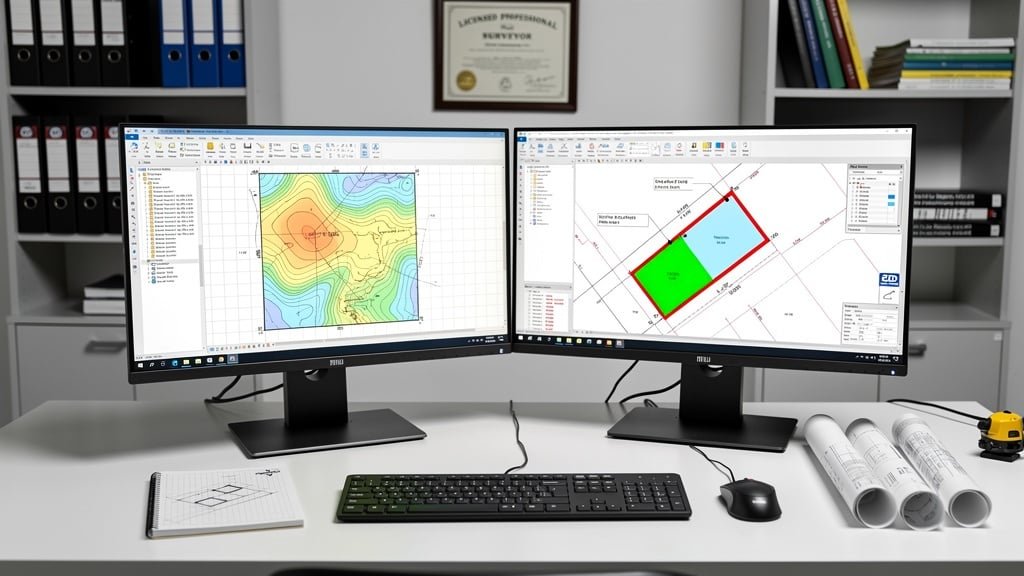
When you receive a topographical survey report from Topo Surveyor, the centerpiece is usually a detailed CAD drawing packed with lines, symbols, annotations, and technical information. For architects and engineers, these drawings are instantly readable tools enabling design work. For property owners or developers less familiar with technical drawings, CAD survey plans can appear overwhelming initially. This comprehensive guide demystifies CAD drawings, explaining what all those lines and symbols mean and how to extract the information you need from professional survey data.
Understanding CAD drawings empowers you to communicate effectively with professionals, verify that surveys captured what you needed, and make informed decisions about your property or development project. Whether you're reviewing a topographic land survey for a planning application or examining a measured building survey for renovations, knowing how to read CAD drawings transforms them from mysterious technical documents into valuable information sources.
What CAD Means and Why Surveys Use It
CAD stands for Computer-Aided Design, referring to software that creates precise technical drawings using digital tools rather than pencil and paper. Professional land surveying services deliver survey data as CAD drawings because this format provides accuracy, flexibility, and compatibility that hand-drawn plans can't match. When our land surveyor team completes fieldwork capturing thousands of measurements, that data is processed into CAD format creating scaled drawings where every line, point, and annotation represents real-world features with precise positions and dimensions.
The primary advantage of CAD drawings is mathematical accuracy. When a CAD drawing shows a building measuring 12.847 meters long, that dimension is stored digitally to that precision. Architects and engineers can measure between any points on the drawing and extract accurate distances, areas, or angles. This accuracy proves essential for design work where millimeters matter—foundation positions, structural calculations, or regulatory compliance checks all depend on precise measurements that CAD drawings provide.
Layer organization represents another crucial CAD feature. Survey drawings organize information into logical layers—separate layers for boundaries, buildings, vegetation, contours, utilities, annotations, and other feature types. Users can turn layers on or off, controlling what information displays. An architect might hide vegetation and utility layers to focus on topography and structures, while a landscape designer displays tree layers prominently while hiding underground services. This flexible information control makes CAD drawings significantly more useful than single-layer hand-drawn plans.
File compatibility allows sharing and collaboration. Survey CAD drawings typically use DWG or DXF formats that open in various CAD software packages. Architects receive survey drawings and incorporate them directly into design software. Engineers import survey data into analysis programs. Planning authorities review drawings using free viewer software. This universal compatibility enables efficient information flow between project participants without data translation problems.
Scalability maintains drawing usefulness across different applications. The same survey data can be plotted at multiple scales—1:200 for detailed design, 1:500 for site planning, 1:1250 for context plans. The underlying data remains identical with coordinate precision, but presentation scales adapt to viewing needs. This flexibility means a single survey dataset serves multiple project purposes rather than requiring separate surveys at different detail levels.
Essential CAD Drawing Elements
Professional topographical survey CAD drawings include standard elements that orient users and provide necessary reference information. Understanding these elements helps you navigate drawings confidently.
The title block appears prominently, usually in one corner, containing vital drawing information. Project identification names the site and purpose. Drawing title describes what the plan shows—topographical survey, site plan, tree survey. Scale statement indicates the plotting scale or notes if the drawing is scaled to fit. Date stamps show survey date and drawing preparation date. Surveyor identification names the responsible surveyor and company. This information establishes drawing provenance and helps users verify they're working with current, appropriate plans.
North points indicate drawing orientation. Most survey drawings align with Ordnance Survey north, but some rotate for optimal paper layout. The north arrow ensures users understand spatial orientation when relating drawings to physical sites or other maps. Some drawings include both grid north (Ordnance Survey grid alignment) and magnetic north, though grid north is standard for survey work.
Scale bars provide visual reference for distances. Even if the stated scale is 1:500, scale bars allow measuring when drawings are enlarged or reduced from original plotting size. Users can align rulers against scale bars to estimate dimensions without calculation. For digital drawings viewed at variable zoom levels, scale bars become essential since on-screen measurements vary with zoom while scale bars adjust proportionally.
Legends or keys explain symbols used throughout drawings. Standard conventions exist for many features, but variations occur between surveyors and project types. The legend clarifies what different line types, symbols, colors, and annotations represent. A tree might display as a circle with cross, a dot with radial lines, or a stylized tree shape—the legend removes ambiguity. Reviewing legends before interpreting drawings prevents misunderstandings about feature representations.
Coordinate grids show Ordnance Survey National Grid references. Grid lines typically appear at regular intervals—maybe every 10 or 50 meters depending on drawing scale. Coordinate labels identify grid line positions using Ordnance Survey eastings and northings. These coordinates allow precise position identification, integration with other surveys or maps, and georeferencing in GIS systems. Professional survey reports always reference recognized coordinate systems rather than local site-specific grids.
Drawing borders and margins define the planned plotting area. CAD files contain more data than typically prints on single sheets, but borders indicate intended sheet sizes and layouts. Users viewing digital files can zoom beyond borders to see additional data if needed, but borders show the core area surveyors intended for primary attention.
Reading Contour Lines and Levels
Contour lines represent one of the most information-rich but potentially confusing elements in topographical survey CAD drawings. These lines connect points of equal elevation, visualizing terrain shape and slope patterns. Learning to read contours unlocks understanding of site topography that critically affects development feasibility and design.
Contour intervals determine how frequently lines appear. A survey might show contours every 0.5 meters, 1 meter, or 2 meters depending on site scale and terrain character. Flat sites need finer intervals to show subtle level changes, while steep sites use coarser intervals to prevent line overcrowding. Survey specifications state contour intervals, and major contours (every 5th or 10th) are often shown as thicker lines or different colors for easier reading.
Contour spacing indicates slope steepness. Closely spaced contours mean steep slopes—elevation changes rapidly over short horizontal distances. Widely spaced contours indicate gentle slopes where elevation changes gradually. Areas with no contours between are essentially flat within the contour interval tolerance. This spacing pattern lets users instantly assess terrain character—steep embankments, gentle rises, flat plateaus, valley floors all have distinctive contour signatures.
Contour shapes reveal terrain features. Concentric circles indicate hills or depressions—elevation labels distinguish upward bulges from downward hollows. V-shapes pointing uphill show valleys or drainage channels where water flows. V-shapes pointing downhill indicate ridges or spurs projecting from higher ground. Complex contour patterns reveal intricate topography that might not be obvious during site visits but becomes clear when contours visualize elevation changes.
Spot heights complement contours by providing exact elevations at specific points. These annotations appear as numbers showing height above ordnance datum (mean sea level). Spot heights typically mark significant features—road levels, building floor levels, high and low points, boundary corners. Combining contour reading with spot heights gives precise understanding of site levels essential for drainage design, building floor level determination, and earthwork quantity calculation.
Level datums must be understood for elevation values to make sense. UK surveys typically reference Ordnance Datum Newlyn (ODN), the national height datum based on mean sea level at Newlyn, Cornwall. A spot height of 125.650 means that point is 125.650 meters above mean sea level. Some surveys use local temporary benchmarks for convenience, but professional surveys always provide conversions to recognized datums for integration with other data sources.
Decoding Survey Symbols and Annotations
Survey CAD drawings use symbols and annotations to represent features too small or complex for scale-accurate depiction. Understanding these conventions helps interpret what surveyors found on site.
Boundary features appear with specific symbols and line types. Legal boundaries often show as thick chain-dot lines, physical boundaries like fences and walls as continuous lines of varying thickness, hedges as repeated symbols suggesting vegetation, and calculated boundary positions as dashed lines. Survey notes clarify boundary status—measured physical features, positions calculated from title documents, or boundaries requiring further investigation.
Buildings and structures display as footprint outlines with internal detail appropriate to survey scope. Walls appear as parallel lines with thickness shown. Doors show as gaps with swing arcs indicating opening direction. Windows vary from simple gaps to detailed symbols showing opening types. Canopies and overhangs might display differently from solid structure to show they're not load-bearing. Annotations identify building uses, materials, or construction types relevant to surveyors' observations.
Vegetation symbols differentiate tree types and sizes. Deciduous trees might show as circles with crosses, conifers as circles with different internal patterns, shrubs as smaller clustered symbols, and hedges as rows of small repeated shapes. Tree annotations often include species identification, trunk diameter, canopy spread, and height estimates. For sites requiring detailed tree surveys, these annotations become extensive, following British Standard BS5837 conventions for development impact assessment.
Utility symbols indicate visible surface evidence of underground services. Manholes appear as rectangular or circular symbols with identification codes. Inspection chambers, gullies, and drainage features have standardized symbols. Utility markers, valve covers, and service terminations display distinctively. Annotations clarify utility types—foul drainage, surface water, combined sewers, water, gas, electricity, telecommunications. Where underground utility surveys have been conducted, buried pipe routes show as dashed lines with depth annotations at measurement points.
Surface materials receive annotations describing paving, grass, concrete, tarmac, gravel, or other finishes. These descriptions help assess existing conditions and inform construction planning. Hard surfaces affect drainage calculations. Different materials have different removal or retention implications. Annotating materials provides information beyond simple geometry.
Level annotations appear throughout drawings showing spot heights at measured points. These numbers orient users to elevation patterns supplementing contour information. Critical levels receive special attention—road levels for access design, adjacent building floor levels for coordination, drainage invert levels for system design, high and low points affecting flood risk.
Using CAD Drawings for Different Purposes
Topographical survey CAD drawings serve multiple project purposes, and understanding how different users extract information helps appreciate drawing comprehensiveness.
Architects use survey drawings as base information for design. They import survey CAD files into design software and overlay proposed buildings, landscaping, and site works. The survey shows existing conditions that designs must respond to—terrain levels affecting floor heights, trees requiring protection or removal, existing structures constraining layouts, boundaries defining buildable areas. Architects constantly reference survey drawings during design development, checking proposals against actual site conditions rather than assumptions.
Engineers rely heavily on survey data for technical design. Structural engineers use building positions and levels when designing foundations. Civil engineers need accurate topography for drainage design—water flows downhill, so contours determine surface water movement and system sizing. Highways engineers assess access visibility using survey data showing road geometries and sight lines. The precise measurements in CAD drawings enable engineering calculations that must be mathematically correct for safety and performance.
Planners and planning officers review survey drawings when assessing applications. They check that red line boundaries accurately represent application sites. They verify that site context shown in surveys matches their knowledge of areas. They use survey information to assess whether proposals respect neighboring properties, maintain appropriate relationships with site features, and address technical requirements like drainage and access. Survey quality affects planning officers' confidence in applications.
Contractors use survey drawings for construction planning and setting out. They identify existing features requiring protection, demolition, or modification. They extract dimensions for material quantities and ordering. They use survey coordinates to position new works accurately on site using GPS or total station instruments. Detailed survey information helps contractors plan efficiently and reduces time spent investigating site conditions.
Quantity surveyors extract dimensional data for cost estimation. Areas can be measured for pricing purposes. Volumes of earthwork can be calculated from contour data. Lengths of boundaries, services, or access routes inform material quantities. While quantity surveyors don't need to understand every survey detail, they rely on drawing accuracy for reliable cost estimates.
Digital CAD File Formats and Software
Survey CAD drawings typically deliver in multiple file formats serving different users' needs. Understanding format options helps you work with survey data effectively.
DWG files represent the native format of AutoCAD and compatible software. These files contain full drawing intelligence—precise coordinates, layer organization, object properties, dimension information. Professional CAD users prefer DWG files because they enable editing, measuring, and integration with design work. DWG format has become an industry standard used by most CAD packages even if they're not AutoCAD specifically.
DXF files provide universal compatibility across different software platforms. DXF (Drawing Exchange Format) contains similar information to DWG but in a more universally readable structure. When compatibility is uncertain, DXF format ensures most CAD software can import survey data successfully. Some information richness might reduce slightly compared to DWG, but core geometry and annotations transfer reliably.
PDF files allow viewing by anyone without CAD software. Survey companies typically provide PDF versions of drawings for reference, presentation, and distribution to parties without CAD capabilities. While PDFs don't enable editing or precise digital measurement like CAD files, they show drawing appearance exactly as intended. PDF viewing software is free and universal, making this format ideal for general distribution.
Free CAD viewing software allows users to open and interrogate CAD files without purchasing expensive professional software. Programs like Autodesk Viewer, DraftSight, and various free CAD viewers can open DWG and DXF files, allowing measurement, layer control, and basic interrogation. These viewers provide sufficient functionality for property owners reviewing surveys even if they're not design professionals.
Common CAD Drawing Questions
People receiving topographical survey CAD drawings often have similar questions. Addressing these helps users get maximum value from survey data.
How do I measure on CAD drawings? In CAD software, measurement tools calculate distances between any two points you click. The software provides exact dimensions using drawing's coordinate system. In PDF viewers, measurement is less accurate but tools exist for approximate dimensions. Remember that screen-displayed sizes vary with zoom—use CAD measurement tools rather than screen rulers for accuracy.
Why does my survey show features not mentioned in my brief? Comprehensive topographical surveys capture all visible site features within survey areas. Even if your primary interest is boundaries, the survey shows buildings, vegetation, utilities, and other elements because they affect site understanding. This comprehensive approach provides flexibility—information you might not have thought needed often proves valuable during design or planning.
Can I edit survey CAD drawings? Yes, with appropriate software and skills. However, editing should be limited to adding design elements over survey base data. Changing survey data itself risks introducing errors. Best practice is importing survey drawings into design files without modification, keeping survey data as reference while adding design layers separately.
How long are survey drawings valid? This depends on site changes. For stable sites, surveys remain relevant for several years. For sites undergoing development or change, surveys become outdated quickly as features change. Most planning authorities prefer surveys less than 12 months old to ensure currency. If using older surveys, site visits verify whether conditions remain as shown.
Conclusion: Unlocking Survey Data Value
CAD drawings from professional topographical surveys contain wealth of information about your site, presented in formats that professionals can use immediately for design, planning, and construction. Understanding how to read these drawings helps you participate effectively in project discussions, verify survey completeness, and appreciate the value that accurate survey data provides.
At Topo Surveyor, we create clear, well-organized CAD drawings that communicate survey findings effectively. We're always happy to help clients understand their survey data and answer questions about interpreting drawings. If you need a topographical survey with professional CAD delivery, get in touch with our survey experts today.
Professional CAD Survey Drawings
Our topographical surveys deliver comprehensive CAD drawings in multiple formats, organized clearly and documented thoroughly to support your project needs.
Get Professional Survey CAD Drawings
Our surveys include professional CAD drawings in multiple formats, ready for architects and engineers to use. We provide clear, accurate drawings with all the detail you need for successful projects.
Discover our comprehensive survey services with CAD deliverables →